Defining names automatically from the selection |
  
|
Defining names automatically from the selection |
|
If you select cells that contain values as well as row or column headings, you can let Calculate generate named ranges automatically from these cells. Calculate automatically retrieves the names from the headings.
Proceed as follows:
| 1. | Select the desired cell range. It must contain both the values and the headings to be used for naming. |
| 2. | Choose the ribbon command Formula | group Named areas | Create names  . . |
| 3. | Calculate displays a dialog box in which you specify the row and/or column containing the headings to be used for naming (see example). |
| 4. | Confirm with OK. |
The names will now be created from the selected headings.
An example
You have created the following table:
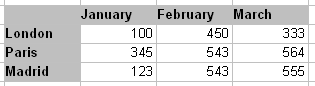
Now select all values and all headings, and choose the ribbon command Formula | Create names. Then specify the row and/or column from which names are to be created:
▪If you select Top row, Calculate will assign the names "January", "February" and "March" to the cells below them.
▪If you select Left column, Calculate names the cells to the right of "London", "Paris" and "Madrid" with the corresponding name.
▪If both options are selected, Calculate will create all six names listed above.