To change the font or font size, see the commands on the ribbon tab Home | group Character. Proceed as follows:
Via the buttons of the command group "Character"
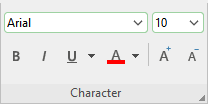
| 1. | Select the desired cells or text. |
| 2. | Click on the small arrow to the right of Font or Font size. |
| 3. | Set the desired font and font size: |
| Font: Select the desired font from the dropdown list via a mouse click. |
| Font size: The dropdown list offers the most common font sizes, which you can select via a mouse click. However, you can enter a different size manually at any time. Font sizes can be entered with a precision of a tenth of a point – thus font sizes such as 12.7 are also allowed. |
| Tip: The icons  in the group Character can be used to increase or decrease the font size by one level. in the group Character can be used to increase or decrease the font size by one level. |
In the dialog box of the command group "Character"
If you only want to change the font and font size, these options in the dialog box are exactly the same as the buttons described above. Thus, it is only advisable to use the dialog box if you also want to use other character formatting options that are not available as buttons.
On the ribbon tab Home | group Character, you open the dialog box via the group arrow in the lower right corner and select the Font tab in the dialog box.


