Opening and saving Excel files |
  
|
Opening and saving Excel files |
|
As mentioned in the section Saving and opening files in other file formats, Calculate is able to open and save documents in Microsoft Excel format.
This works smoothly in most cases. However, some arithmetic functions are either incompatible or are not supported by Calculate or Excel.
This section provides help in resolving these issues:
Warning message issued when opening an Excel file
When you open an Excel file containing arithmetic functions that are not compatible with Calculate, the following warning message is displayed:
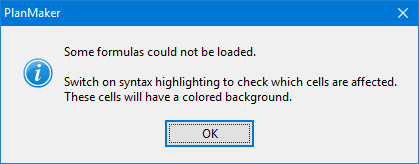
Then proceed as follows:
| 1. | Choose the ribbon command View | Syntax highlighting  to enable syntax highlighting. to enable syntax highlighting. |
| 2. | All cells containing formulas for which the conversion failed will be highlighted with a colored background. These cells must be revised manually. |
| Compare its contents with the contents of the corresponding cell in the Excel document. Try to replace the incompatible arithmetic functions with Calculate functions. For more information on all arithmetic functions supported by Calculate, see Functions from A to Z. |
| 3. | When all cells are revised, disable syntax highlighting. |
Save the document (in Calculate format) to finalize the changes.
Warning message issued when saving a document in Excel format
When you save a Calculate document in Excel format and the document contains formulas that are incompatible with Excel, the following warning message will be displayed:
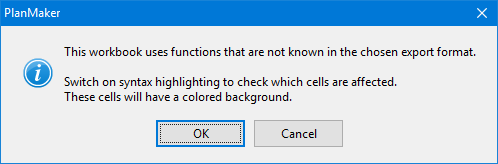
Then proceed as follows:
| 1. | Choose the ribbon command View | Syntax highlighting to enable syntax highlighting. |
| 2. | All cells containing formulas that are incompatible with Excel will be highlighted with a colored background and must be revised manually. All arithmetic functions that are incompatible with Excel should be replaced with Excel functions if possible. For more information, see the Help section for the respective arithmetic function. |
| 3. | When all cells are revised, disable syntax highlighting. |
Save the document in Excel format again. If no further warning messages are displayed, all incompatibilities have been eliminated.